



The fastest path to great edits in 2026 is a mobile editor with built-in licensed sounds, one‑tap effects, and a direct way to publish to an audience. For new creators, video editing with effects and music works best when the library and the share button live in the same app.
You can learn pro tools later. Right now, you need speed, safety, and reach. Using a simple editor reduces your time to first post from hours to minutes. With a licensed sound library, you stay safe from strikes. A built‑in audience means your work gets seen the same day you learn the basics.
Audience reach matters as much as your edit. Platforms that already attract large communities give beginners a real shot at feedback and momentum. For instance, Chingari reports 50 million+ users and 1.6 billion video views on the platform. Those numbers don’t make your video go viral on their own, but they do mean your next post is not shouting into the void.
This guide is built for first‑time creators. You’ll learn the beginner traps to avoid, how to pick the right tool, and a simple, repeatable workflow. By the end, you’ll know how to pair effects and music tastefully, publish with confidence, and grow an audience in 2026 without burning out or blowing your budget.
Why New Creators Struggle with Video Effects and Music
First, the tools can feel like a cockpit. Timelines, layers, and keyframes look scary when you just want to add a beat drop and a clean transition. Second, music rights are confusing.
You hear a trending track, add it, then worry about takedowns. Third, paid stock can be pricey, and it’s hard to know which libraries you can use without trouble. Put together, video editing with effects and music can feel like a maze.
Moreover, you might be editing on a small phone with limited storage. Even a 30‑second clip can chew through space once you add HD exports. In addition, every platform seems to have its own rules for sound and length. For example, a sound that is fine on one app may get flagged on another. As a result, beginners hesitate and post less.
However, your first ten posts matter more than your first perfect post. You need feedback loops, not feature overload. A tool that hides complex controls until you need them keeps you moving. In fact, the right defaults, auto beat sync, pre‑timed transitions, and licensed in‑app tracks, remove hours of guesswork.
Common early hurdles
- Too many controls before you learn the basics
- Unclear music rights and fear of copyright warnings
- Costly stock libraries for tiny clips
- Slow export times on older phones
- No built‑in audience to test ideas fast
Therefore, aim for a setup that reduces choices at the start. Pick a simple editor, use built‑in sounds licensed for that platform, and stick to two or three effects you can master in a week. You’ll learn faster, post more, and feel less stressed.
What to Look for in a Video Editing Tool with Effects and Music
You want a tool that removes friction. You also want one that grows with you. At a minimum, look for a built‑in, royalty‑free music library you can use on‑platform without fear.
In addition, one‑tap effects make your first cuts clean and on‑beat. Mobile‑first design keeps your process fast, so you post more. Together, these features make video editing with effects and music feel simple, not scary.
Specifically, licenses matter. “Royalty‑free” describes a license model where you pay once (or not at all) and reuse tracks within set terms, but it does not always mean “any use, anywhere.” For background, see the Wikipedia overview of royalty‑free. In an ideal beginner setup, the app’s own music library is cleared for use on that platform. That way, you don’t have to decode complex terms before you hit publish.
Furthermore, mobile‑first editing should mean short load times and an interface designed for thumbs. Buttons must be big. Text must be clear.
Effects should explain themselves in plain language, not jargon. In addition, you’ll want multilingual support if you work in more than one language or target local audiences. It helps your captions, discovery, and comfort with the app itself.
Zero‑cost entry is key in your first month. You’re still learning your style, so your tool should let you post and test without paying upfront. Finally, a real community for feedback is not optional. A built‑in audience gives you comments, likes, and DMs in hours, which beats waiting weeks for a reply in a forum.
Buying criteria to check
- Built‑in music library licensed for use on that platform
- One‑tap effects (filters, transitions, AR, speed)
- Mobile‑first design with fast exports
- Available in 10+ languages if you need it
- Free to download and start creating
- A live community for instant feedback and reach
If a tool hits these marks, it will carry you from your first clip to your first streak of consistent posts. And as you grow, you can add more advanced edits without switching platforms.
Also Read!
How to Live Stream Music Performances as a Musician or Singer
How Chingari Helps New Creators Edit with Effects and Music
Chingari brings creating and sharing into one place. You open the app, pick a sound from the built‑in library, add an effect or two, and share to a community that already watches short videos. That direct path reduces the gap between idea and post. It also reduces risk, because the in‑app tracks are provided for use on the platform. For your first 30 days, that’s exactly how video editing with effects and music should feel, safe, quick, and fun.
Moreover, social proof matters when you choose where to post. Chingari reports 50 million+ users and 1.6 billion views on the platform. Those are strong signals that people show up to watch. As a creator, that means more chances to learn what works. You don’t need a perfect video to get a comment; you just need to show up and post.
Built‑in effects, music, and mobile‑first design
- Effects and filters you can apply in a single tap
- Speed controls and transitions for quick polish
- A music library inside the app, so you can add trending sounds fast
- Short video sharing capabilities built into the same interface
In addition, Chingari is available in 10+ languages. If you create in Hindi, Bengali, Marathi, or another supported language, you can set your UI and captions to match your voice. That helps you reach viewers who prefer local content, which is vital if you want to grow in India.
Furthermore, creation is only half of the story. Chingari supports live video streaming and live audio rooms. Those tools let you test ideas in real time, host Q&As, and thank new followers on the spot. Compared to alternatives that focus only on editing, you get both the “make” and the “meet” in one place.
“I posted my first five clips in a week because the sounds and effects were right there. No hunting, no fear.” — New creator, Pune
Unlike standalone editors, you don’t have to export, switch apps, and re‑upload. You can record, edit, and publish right inside Chingari. That workflow saves time and reduces small mistakes that creep in during exports.
Chingari vs CapCut vs InShot: Which Is Best for Beginners?
If you want the deepest standalone editor, CapCut sets a high bar with advanced controls. For a simple clipper for quick social posts, InShot is friendly and fast. For an editor plus a built‑in audience, Chingari adds short video sharing and live streaming on top of effects and sounds. For a first‑time creator in 2026, that integrated setup can speed up your learning curve.
Moreover, Chingari has a clear focus: social networking for India. It has been recognized as India’s #1 Social Networking App and is available in 10+ languages. That local focus helps new creators reach viewers who love regional content. By contrast, CapCut and InShot act as neutral editors. They edit well, then hand you the job of finding an audience elsewhere.
Quick comparison for first‑time creators
| Feature/Criteria | Chingari (editor + platform) | CapCut (standalone editor) | InShot (standalone editor) |
|---|---|---|---|
| Free music access | Built‑in, licensed for use on‑platform | In‑app tracks; usage terms vary by destination | In‑app tracks; usage terms vary by destination |
| Effects variety | One‑tap filters, AR, transitions | Very broad set, pro controls available | Good set for social posts |
| Learning curve | Fast for simple edits | Deeper; more controls to learn | Simple for basics |
| Mobile‑first design | Mobile‑first plus live streaming | Mobile and desktop | Mobile‑only |
| Language support | Available in 10+ languages | Multiple languages | Multiple languages |
| Community reach | Built‑in audience; short video sharing | No built‑in social network | No built‑in social network |
| Data protection focus | Data protection and security measures | Not positioned here | Not positioned here |
Unlike CapCut and InShot, Chingari reduces app‑hopping. You don’t need to export, compress, and re‑upload. That saves time and avoids quality loss. However, if you love fine control over keyframes and desktop workflows, CapCut shines. And if you just want a basic trimmer with a clean UI, InShot is a strong pick.
For more on where InShot fits for music‑driven creators, see this piece aimed at artists: Chingari vs InShot for Musicians and Singers: Which Is Better for Video Editing with Effects and Music?

Trust, Security, and Creator Credentials
You share real moments, so your app’s privacy stance matters. Chingari highlights data protection and security measures as part of its platform focus. If you plan to go live, share drafts, or store clips, you want that baseline. In the EU, the GDPR sets strict rules for personal data; if you want a primer, read the official text of Regulation (EU) 2016/679. While the legal details are complex, the core idea is simple: your data deserves care.
Social proof also helps you decide where to invest your time. Chingari cites 50 million+ users on the platform and 1.6 billion video views. In addition, it notes 1.3 crore Play Store downloads. Those signals tell you the community is active and growing. For a beginner, that reach turns early posts into real feedback.
Moreover, recognition matters. Chingari has been recognized as India’s #1 Social Networking App. That aligns with its India‑first design and language support. If your audience is in India, this match between product and market can help your work land with the right people. Security and reach together form a solid base: you can post with less worry, and more viewers can see your work.
Also Read!
How to Find the Best Indian Language Video Content as an Indian User
Chingari vs Moj for Indian Users: Which Is Better for Indian Language Video?
Getting Started: Your First Video with Effects and Music on Chingari
Let’s do your first post. Keep it simple and fast. Your goal is to record, add one effect, choose a track, and publish. That flow builds muscle memory. It also shows you how video editing with effects and music fits in a daily routine, not just a weekend project.
Step‑by‑step onboarding
-
Step 1: Download the app. Install it from the Play Store or the App Store. It’s free to download, so you can start without a credit card.
-
Step 2: Choose your language. Chingari is available in 10+ languages. Pick the one you create in, so captions and prompts feel natural.
-
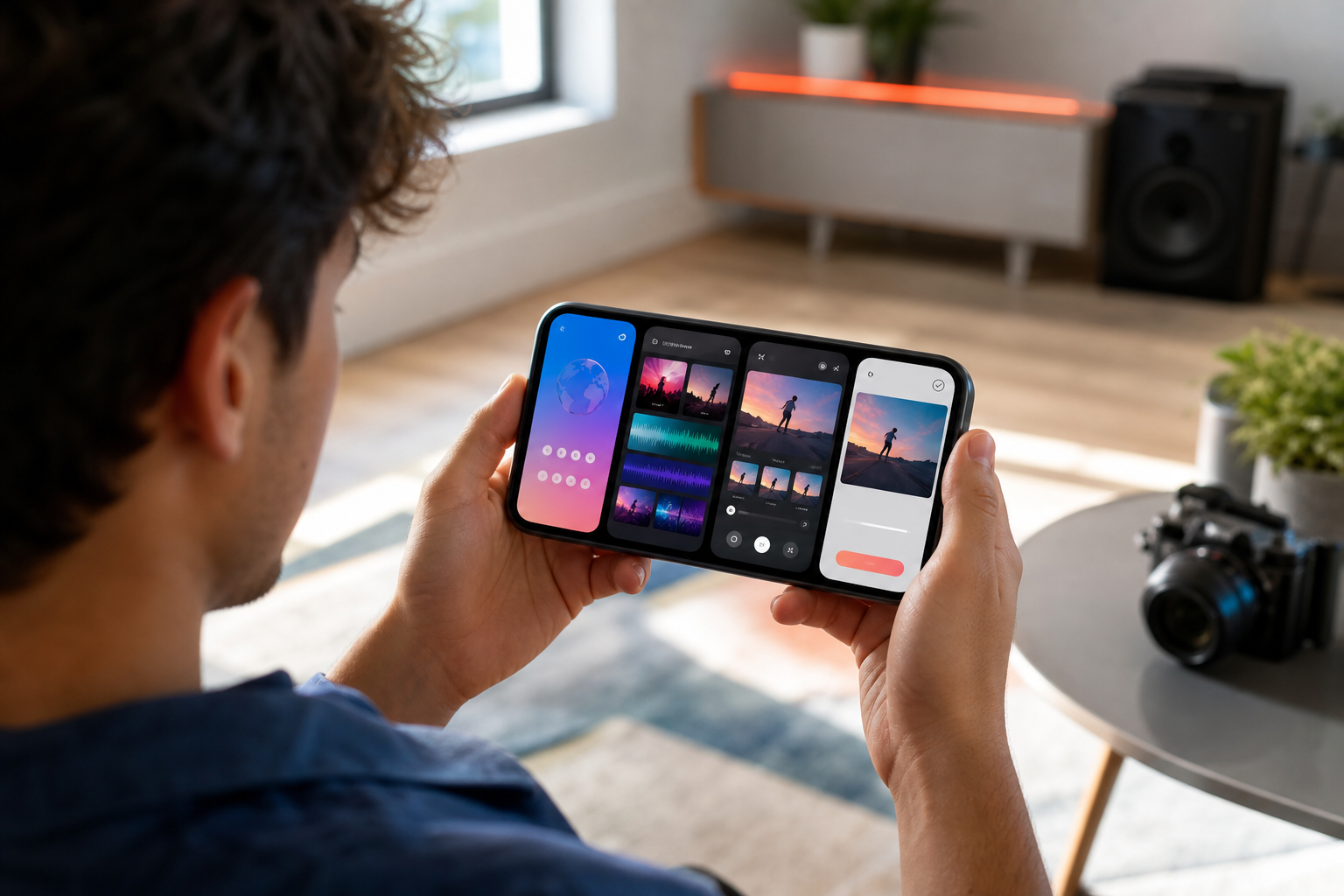
Step 3: Pick a trending sound. Tap the music icon and browse the in‑app library. Add a track that matches your clip’s mood.
-
Step 4: Apply one effect. Use a one‑tap filter or a simple transition. Less is more on your first post.
-
Step 5: Record or upload. Shoot a 10–20 second clip, or import one from your camera roll. Trim with the slider.
-
Step 6: Publish. Add a caption in your language, set visibility, and share. Short video sharing is built in, so your clip goes live fast.
Tips for your first five videos
- Repeat the same format to learn timing
- Try one new effect each post
- Use the same track style for a week
- Ask a clear question in your caption
- Watch comments for patterns, not one‑offs
For musicians and singers, this companion guide can help you tailor your flow to performance clips: Best Video Editing Effects & Music for Musicians and Singers in 2026.
Frequently Asked Questions
Is Chingari free to use for video editing with effects and music?
Yes. Chingari is free to download and use, so you can start without paying. The built‑in effects and music features are available at no cost on the platform. That makes it a good choice if you’re learning on a budget. You can post, test, and improve before you spend a rupee.
Can I use Chingari's music in my videos without copyright issues?
Music inside Chingari’s in‑app library is licensed for use on the platform. You can add trending sounds to your short videos and publish without worrying about strikes there. If you plan to export and post elsewhere, check that platform’s rules first. Keeping edits and posts inside one app is the simplest way to avoid confusion.
How does Chingari compare to CapCut for beginners?
CapCut offers deeper standalone editing with more granular controls. Chingari combines editing, publishing, and a 50M+ user community in one place. If you want instant audience reach alongside simple edits, that all‑in‑one path is helpful. If you want advanced keyframes and desktop workflows, CapCut may fit better.
Is Chingari only for Indian creators?
Chingari is India‑focused and supports 10+ languages, which makes it strong for Indian audiences. If your goal is to reach viewers in India, the local focus helps. Creators outside India can still experiment, but the platform is built for this market first. That clarity can be an advantage if you speak to regional fans.
What video effects are available on Chingari?
Chingari includes filters, transitions, speed controls, and trending AR effects. These are designed so beginners can apply them with a single tap. You can stack simple edits, like a filter plus a speed change, to get a clean style fast. As you grow, you can add more effects without changing apps.
Can I go live on Chingari as a new creator?
Yes. Chingari supports live video streaming and live audio rooms. Going live lets you talk to viewers in real time and grow faster. It also gives you instant feedback on ideas before you turn them into edited clips.
What alternatives to Chingari should new creators consider?
InShot and CapCut are both strong if you want pure editing tools. CapCut leans toward advanced controls; InShot keeps it simple. However, neither includes a built‑in social platform with 1.6 billion views and community discovery like Chingari. If you value audience reach inside the same app, that difference matters.
Is my data safe on Chingari?
Chingari emphasizes data protection and security measures as a core focus. That stance is reassuring if you’re sharing personal content for the first time. You still control what you post, but it helps to know the platform treats data with care. For extra safety, review privacy settings before you go live.
Final Takeaways
- Start simple: Pick a mobile‑first tool with one‑tap effects and a built‑in music library so you can post fast.
- Grow where you post: A platform with 50 million+ users and 1.6 billion views gives beginners real feedback quickly.
- Build a routine: In 2026, consistent short videos paired with clear sounds and light effects beat rare, complex edits.
 How to Live Stream Music Performances as a Musician or Singer
 Indian Users